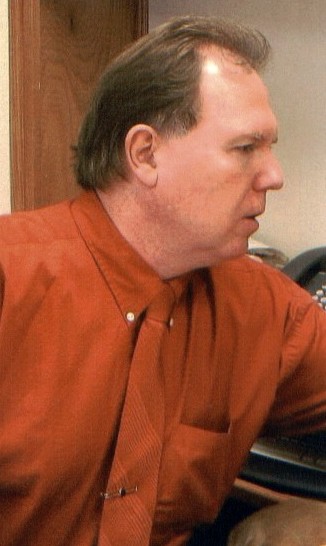
I’m at aloss for finding the right superlative to describe last night.
It seems like “great,” “awesome,” or even “fantastic” just seem like overused modifiers in today’s digital world where everybody’s favorite web-connected device is their means of sharing thoughts with the world, and people toss those words about like so many handfuls of Tic Tacs. Those words also don’t begin to grasp the powerful, slap you in the face directness of what
Tom Sullivan
had to say during his presentation of Adventures in Darkness to the gathered group at the
University of Houston’s
Cullen Performance Center.
If you are unfamiliar with Tom Sullivan, click the link above and learn who he is.
I can tell you he is an author, actor, producer, entertainer, Olympic athlete, Harvard graduate, Wrestling Hall of Fame inductee, recipient of the Will Rogers Lifetime Achievement Memorial Award, and so many other accomplishments and honors. I can also tell you he is a man who happens to be blind. That last bit of information is just the punctuation mark on the previous listing of awards and acknowledgements.
The presentation was sponsored by the UH School of Optometry and the women of the Delta Gamma sorority, so Sullivan targeted his comments to future vision specialists and the sorority of his wife. However, he always made sure to include others who might be in the audience, but he tried to ensure that his words had the most impact for the future vision professionals.
First, let me toss out the only statistic I recall Sullivan mentioning. I want to put it here, because its significant. Granted, I don't know the source of his information, but am trusting it to be accurate.
43%
The divorce rate among married couples in the United States
87%
The divorce rate of married couples in the United States when they are parents of a blind child
Whoa! I told you it was significant.
Sullivan built his presentation around a few scenes from his most recent book, Adventures in Darkness: Memoirs of an 11 year old blind boy. If you were smart like me, and bought the commercial audio version of this book on CD, you already have an idea what this presentation was about, because Sullivan read the book on that version. And, then you also know how he did the voices of his dad, “Porky,” as well as Helen Keller, who he met at the Perkins School for the Blind, and his childhood tormentor, Eddie Mullins, when he taunted the fenced-in 11 year old by calling him “Blindy, Blindy.” He brought these same voices with him last night to give a lively emphasis to his presentation.
In last night’s audio smorgasbord, not only did the audience get to feel the emotional ride of Sullivan’s lifetime, it was also augmented by additional audio and video. The introduction from the Dean of the School of Optometry was followed by a video of Sullivan engaging in some of his favorite past times including him playing golf. Sullivan took the stage during that point and began playing the baby grand piano, serenading the audience with one of his inspirational original tunes. As he finished that song, he delved into his first story about the Perkins school. He played a few more songs through the presentation, scattering them about as he spoke.
His first story was about the last of eleven times he was kicked out of the Perkins school. It involved an escapade when he and his two best friends climbed out of their rooms, shimmying down a rope made of tied bedsheets, to go make off with one of the boats the school had. They made good on their escape, managing to go boating for more than seven hours until they were in Boston Harbor. Unbeknownst to those three lads, this was the busiest shipping port on the East Coast at that time. He gave a very gripping account of how they were nearly capsized by a passing freighter and their final safe boarding by the U.S. Coast Guard.
Through it all, Sullivan instilled a message of courage and daring, with an added soundtrack of sound effects to accompany his narrative. I personally loved it when he described how he played baseball by himself, and he added in the audio of a big league ballpark. Later, as he told the story about the boxing match his dad arranged between he and Eddie Mullins, the audio accompaniment had the sounds of punches hitting as he told the story. These were also emphasized by a bright light flashing in perfect time with each loud and distinctive punch.
His words drove home some basic messages. There were two that I took away. Don’t build fences to keep blind people safe, a point of discussion we just had at work earlier that day. Sullivan highlighted this when telling about his next-door neighbor inviting him to his yard with three simple words, “Want to play?” Also, dream big and don’t place false limitations on yourself. That last thought is a personal credo of mine, so I did a personal, internal “Whoop” when that was really hammered home.
I first heard of Tom Sullivan in the 1980s when I watched the movie If You Could See What I Hear, based on his autobiography of the same name. Little did I know at that time that I’d later share that same punctuation mark of being a man who happened to be blind in identifying my life.
I loved the movie, and there were a few memorable moments I’ll never forget. One is the scene mostpeople recall when you mention Sullivan. It’s the scene where, although he’s blind, he’s driving a car with some drunken friends in it, and he tells the police officer who pulls him over, that he had to drive, because “I was the only one who was sober.”
The other memborable scene in the film was given a brief showing during last night’s presentation. It is near the end of the film where Sullivan is home alone, watching the children. When he gets distracted by a phone call from Johnny Carson, who is calling to invite Sullivan to appear on The Tonight Show, and the girl slips out unnoticed, then falls in the pool. While Sullivan told this story to us, the screen onstage behind him showed the actor Mark Singer diving into the pool and searching for his daughter. He drove the point home to the audience about how scary and futile it felt searching for her, and the importance of listening for the faintest of sounds.
As last night’s presentation drew to a close, there were flashes of that same daughter on the video screen, now grown and skiing with Sullivan. Of course, the man skis! What did you think; blind people don’t ski?
In conclusion, let me share my heartfelt recommendation to see Tom Sullivan if you ever get the chance. If you see he’s speaking somewhere near you, it will be worth your trip to go see him. Also, if you’re looking for an engaging and entertaining speaker with a message, there is information for arranging bookings on his web page linked above.
Showing posts with label Reviews. Show all posts
Showing posts with label Reviews. Show all posts
Friday, February 26, 2010


Monday, December 28, 2009
Final thoughts on the iBill by Orbit Research
I must have been a really nice boy this year, because Santa was really good to me. I got a portable USB hard drive and the latest Jimmy Buffett CD, and I wanted both of these, but he also made sure I got one thing I really wanted…the iBill, the new talking banknote identifier by Orbit Research.
Now that I have the true iBill, I can compare it with the pre-production unit I had, and also make comparisons with what the manufacturer promised on the
Official iBill web page.
The very first thing I checked out was the battery compartment door. I had been told about the existence of this problem by the company and, as they promised, had problems trying to get the darn thing open. As a matter of fact, I never got the door open on the review unit. I was told that if I wanted to open it, they could give me assistance, but I decided that I’d pass and see how the next gen model developed.
Well, all I can say is that they’ve got this fixed very nicely. That door is a problem no longer. With a simple intentional push, I can easily get to the single AAA battery contained inside the iBill.
Opening that door also let me see how well they’ve got the door secured, too. The user’s manual said that this door was secured with rubber strings so that it didn’t accidently separate from the unit and get misplaced. That door just hangs in place and lets you do your work with the battery. Nice.
And, speaking of the user’s manual, I hadn’t thought about how the company gets this to the user. It comes on a mini-CD, packaged inside a protective, plastic sleeve. The mini-CD has five items on it. There are two folders, one contains the audio version of the user’s manual, and the other is a folder of pictures of the product, which has 8 files inside. The remaining items are the iBill Quick Start Guide text document, and the iBill User’s Manual as both a pdf and text document. Additionally, there are large print copies of the two documents in the iBill’s package as well. All of these versions are promised to the user by Orbit Research.
Note: The file inside the first folder with the audio version of the user’s manual is a file extension .CDP and I was initially puzzled why this file type, which I’ve not heard of previously, wouldn’t play in my computer’s CD/DVD drive. After reading up on the file extension, it is related to something called the Sony CD Architect Project. (I should’ve been tipped off by the mini-disc, a Sony brainchild.) Anyhow, after reading up on the file extension online, I found that if I just put the minidisk into a regular CD player, it would play.
With all that said, the audio version of the manual is done very well, presented in a professionl manner by a female reader.
So, what else do I have to add to my initial review of the iBill? Nothing. My initial review posted just prior to this is on target with the exception of what I note here. They fixed what they said they would do and offer everything they promise in the multi-item list on the company web page. Great job, Orbit Research.
And, thanks, Santa!
Now that I have the true iBill, I can compare it with the pre-production unit I had, and also make comparisons with what the manufacturer promised on the
Official iBill web page.
The very first thing I checked out was the battery compartment door. I had been told about the existence of this problem by the company and, as they promised, had problems trying to get the darn thing open. As a matter of fact, I never got the door open on the review unit. I was told that if I wanted to open it, they could give me assistance, but I decided that I’d pass and see how the next gen model developed.
Well, all I can say is that they’ve got this fixed very nicely. That door is a problem no longer. With a simple intentional push, I can easily get to the single AAA battery contained inside the iBill.
Opening that door also let me see how well they’ve got the door secured, too. The user’s manual said that this door was secured with rubber strings so that it didn’t accidently separate from the unit and get misplaced. That door just hangs in place and lets you do your work with the battery. Nice.
And, speaking of the user’s manual, I hadn’t thought about how the company gets this to the user. It comes on a mini-CD, packaged inside a protective, plastic sleeve. The mini-CD has five items on it. There are two folders, one contains the audio version of the user’s manual, and the other is a folder of pictures of the product, which has 8 files inside. The remaining items are the iBill Quick Start Guide text document, and the iBill User’s Manual as both a pdf and text document. Additionally, there are large print copies of the two documents in the iBill’s package as well. All of these versions are promised to the user by Orbit Research.
Note: The file inside the first folder with the audio version of the user’s manual is a file extension .CDP and I was initially puzzled why this file type, which I’ve not heard of previously, wouldn’t play in my computer’s CD/DVD drive. After reading up on the file extension, it is related to something called the Sony CD Architect Project. (I should’ve been tipped off by the mini-disc, a Sony brainchild.) Anyhow, after reading up on the file extension online, I found that if I just put the minidisk into a regular CD player, it would play.
With all that said, the audio version of the manual is done very well, presented in a professionl manner by a female reader.
So, what else do I have to add to my initial review of the iBill? Nothing. My initial review posted just prior to this is on target with the exception of what I note here. They fixed what they said they would do and offer everything they promise in the multi-item list on the company web page. Great job, Orbit Research.
And, thanks, Santa!
Thursday, December 17, 2009
Review of the iBill talking banknote identifier
I previously posted the news announcing the introduction of the iBill electronic banknote identifier, and now, I offer my review of this latest piece of assistive technology for the blind and visually impaired.
I’ll admit that when I first read that
Orbit Research
was offering this tool at size, weight, speed, and price thresholds that I have never heard of previously, I was skeptical. I thought to myself that this must be a bit of exaggeration on some part. Surely, this device couldn’t do everything they advertise and they can still sell the unit for only $99.
Well, the people at Orbit Research were right.
If you want to listen to my podcast of the review and hear a demonstration of the iBill in action, its on
www.blindcooltech.com
I’ll boil the iBill down to a few words: Compact, lightweight, fast, accurate, easy to use, and, most importantly, in the realm of assistive technology, affordable.
The iBill is small enough to carry in your pocket. Measuring 3 inches wide (just wide enough to insert the end of a bill) by 1.6 inches long, and less than ¾ of an inch thick, it fits easily in your pocket or purse among your keys and USB jump drives. When you hold it, the iBill fits handily in your palm.
And, being lightweight is another one of its feature facets. At just 1.5 ounces, you hardly even realize the iBill is present until you need it.
The iBill has only two buttons on it to operate the unit and change between the five output settings, the iBill is very simple to use. It comes with both a quick start guide and a user’s manual, both of which are well written with clearly defined directions, and easily explaining the unit’s design and operation.
I tried the iBill with bills in denominations or $1, 5, 10, and 20. I’ll give the iBill the benefit of the doubt and figure it will do as well on the $2, 50, and 100 denominations that I didn’t use.
I intentionally tried to test the limits of the iBill. I first inserted each bill correctly, making sure the corners and edges were smooth and flat. It correctly identified each bill I gave it in about one second. The iBill literature claims a recognition speed of one second. Check.
I tried to see if the product would give incorrect readings if the bills had folded or wrinkled corners. When it couldn’t identify a bill, it beeped to let me know it was trying to figure it out, but after about 3-5 seconds, it gave me an “Error” message. It never misidentified a bill. If it couldn’t recognize a bill, it announced, “Error.” The iBill brochure says it is 99.9% accurate. Check.
The output settings on the iBill include low, medium and loud spoken audio, a vibration mode, and a tone mode. The spoken audio modes were very acceptable for different settings and announced clear, easy to understand spoken denominations in a female voice.
The tone mode worked very well to identify the bills, too. There is a low tone in sequences of 1, 2, and 3, tones for $1, 2, and 5 bills, and a high tone in that same sequence for $10, 20, and 50 bills, all respectively, as well as a low-high, low-high sequence for $100.
However, Where I see this as a powerful tool, besides as a quality bill identifier for those of us who are totally blind, is as an equally great product for anybody who is deafblind. With the vibration mode, there are sequences of short or long pulses in identical sequences of the tone mode to quickly identify the different denominations. There’s even a very long pulse for an error message.
The iBill I tested was a pre-production review unit. I was told that there was a design change to the battery compartment cover, as the pre-production model’s cover was difficult to open. I didn’t need to change the battery, as they had a brand new one installed, but was curious to see how difficult it would be to open. After trying several times, I never did get it open, so I hope the new model is easier to open.
I also demonstrated this product to several visually impaired students and professional staff members who work with these students. With a brief introduction, all but one of the students was able to quickly make the iBill work. The one who had the most difficulty was the only one who was totally blind. All were impressed with the design speed, and accuracy of the iBill.
The only constructive feedback anybody offered was a suggestion that there might be an inset on one of the rear corners where a key ring might be attached. This was suggested as possibly aiding in orienting the user to the iBill. There were no complaints about how the iBill operated.
To conclude, let me compare the iBill to previous models of similar products. In the past, I’ve handled a bill identifier that was probably three times the size of the iBill and several times the weight. That device was bulky and not easily carried in one’s pockets. Additionally, the lowest price I’ve ever seen for one of those units was $189. On those three fronts the iBill charges to the front of the pack, and it does so with a hard to beat accuracy rate and identification speeds faster than the KNFB Reader Mobile. For giving independence to people who are blind and visually impaired, this is a product that should find its way to one’s toolbox of assistive technology.
If you're interested in this product, the first shipments of the iBill are going out next week, just in time for Christmas. Those who have already contacted the company are being processed first. There will also be an online order form on the company's web site in the near future, so that you can order the product directly. I've told Santa to grab me one and even he had to leave his name and phone number. Even jolly old Saint Nick has to wait to get one of these.
I’ll admit that when I first read that
Orbit Research
was offering this tool at size, weight, speed, and price thresholds that I have never heard of previously, I was skeptical. I thought to myself that this must be a bit of exaggeration on some part. Surely, this device couldn’t do everything they advertise and they can still sell the unit for only $99.
Well, the people at Orbit Research were right.
If you want to listen to my podcast of the review and hear a demonstration of the iBill in action, its on
www.blindcooltech.com
I’ll boil the iBill down to a few words: Compact, lightweight, fast, accurate, easy to use, and, most importantly, in the realm of assistive technology, affordable.
The iBill is small enough to carry in your pocket. Measuring 3 inches wide (just wide enough to insert the end of a bill) by 1.6 inches long, and less than ¾ of an inch thick, it fits easily in your pocket or purse among your keys and USB jump drives. When you hold it, the iBill fits handily in your palm.
And, being lightweight is another one of its feature facets. At just 1.5 ounces, you hardly even realize the iBill is present until you need it.
The iBill has only two buttons on it to operate the unit and change between the five output settings, the iBill is very simple to use. It comes with both a quick start guide and a user’s manual, both of which are well written with clearly defined directions, and easily explaining the unit’s design and operation.
I tried the iBill with bills in denominations or $1, 5, 10, and 20. I’ll give the iBill the benefit of the doubt and figure it will do as well on the $2, 50, and 100 denominations that I didn’t use.
I intentionally tried to test the limits of the iBill. I first inserted each bill correctly, making sure the corners and edges were smooth and flat. It correctly identified each bill I gave it in about one second. The iBill literature claims a recognition speed of one second. Check.
I tried to see if the product would give incorrect readings if the bills had folded or wrinkled corners. When it couldn’t identify a bill, it beeped to let me know it was trying to figure it out, but after about 3-5 seconds, it gave me an “Error” message. It never misidentified a bill. If it couldn’t recognize a bill, it announced, “Error.” The iBill brochure says it is 99.9% accurate. Check.
The output settings on the iBill include low, medium and loud spoken audio, a vibration mode, and a tone mode. The spoken audio modes were very acceptable for different settings and announced clear, easy to understand spoken denominations in a female voice.
The tone mode worked very well to identify the bills, too. There is a low tone in sequences of 1, 2, and 3, tones for $1, 2, and 5 bills, and a high tone in that same sequence for $10, 20, and 50 bills, all respectively, as well as a low-high, low-high sequence for $100.
However, Where I see this as a powerful tool, besides as a quality bill identifier for those of us who are totally blind, is as an equally great product for anybody who is deafblind. With the vibration mode, there are sequences of short or long pulses in identical sequences of the tone mode to quickly identify the different denominations. There’s even a very long pulse for an error message.
The iBill I tested was a pre-production review unit. I was told that there was a design change to the battery compartment cover, as the pre-production model’s cover was difficult to open. I didn’t need to change the battery, as they had a brand new one installed, but was curious to see how difficult it would be to open. After trying several times, I never did get it open, so I hope the new model is easier to open.
I also demonstrated this product to several visually impaired students and professional staff members who work with these students. With a brief introduction, all but one of the students was able to quickly make the iBill work. The one who had the most difficulty was the only one who was totally blind. All were impressed with the design speed, and accuracy of the iBill.
The only constructive feedback anybody offered was a suggestion that there might be an inset on one of the rear corners where a key ring might be attached. This was suggested as possibly aiding in orienting the user to the iBill. There were no complaints about how the iBill operated.
To conclude, let me compare the iBill to previous models of similar products. In the past, I’ve handled a bill identifier that was probably three times the size of the iBill and several times the weight. That device was bulky and not easily carried in one’s pockets. Additionally, the lowest price I’ve ever seen for one of those units was $189. On those three fronts the iBill charges to the front of the pack, and it does so with a hard to beat accuracy rate and identification speeds faster than the KNFB Reader Mobile. For giving independence to people who are blind and visually impaired, this is a product that should find its way to one’s toolbox of assistive technology.
If you're interested in this product, the first shipments of the iBill are going out next week, just in time for Christmas. Those who have already contacted the company are being processed first. There will also be an online order form on the company's web site in the near future, so that you can order the product directly. I've told Santa to grab me one and even he had to leave his name and phone number. Even jolly old Saint Nick has to wait to get one of these.
Thursday, August 14, 2008
Review of TALKS Premium 3.52 mobile screen reader
Here’s the second half of my review of my Nokia N82, wherein I discuss the use of the Nuance TALKS screen reader. When I purchased this Smart Phone, I did so with the full intention of operating a screen reader on it so that I would get the full benefit of the phone’s functionality.
My previous experience with a text-to-speech (TTS) solution on a mobile phone was running the TALKS screen reader on a Nokia 6620. AT&T has a Center for Customers with Disabilities and at that time, offered to reimburse the cost of TALKS and discount the phone’s high cost if I committed to a two-year contract. Getting assistive technology for free and a 33% discount on a high-end Smart Phone was a no-brainer for me.
That was three or four years ago and I really liked the feedback that TALKS gave me. It allowed me to have unprecedented access to the information displayed on my cell phone. On top of that, it used Eloquence, my preferred speech engine, for TTS. I also bookmarked the TALKS web site for figuring out how to use this nifty technological wonder.
However, finding resources for support soon became difficult. As far as I knew, this was the only screen reader available for mobile phones and once I purchased the unit, I was basically on my own for figuring out how to use it. First, I misplaced the CD that came with the screen reader. AT&T offered nothing to help me out and the web site I had bookmarked soon began giving me that dreadful 404 message, “Web page could not be found.” That experience made me wary about ever using TALKS again.
So, when I was looking at purchasing a new phone a couple of months ago, I wasn’t so sure about getting one with TALKS. I looked at Mobile Speak, TALKS’ primary mobile screen reader competitor, which AT&T now features, offering it for only $89. However, because AT&T no longer sells TALKS nor do they sell the N82, they also do not have a license to support the N82 with the Mobile Speak screen reader. That meant if I wanted to change to Mobile Speak for my TTS solution, I was going to have to pay full retail, about $295, for it.
I spent some time doing some web research and found that I could get a handset license transfer for TALKS, which included an upgrade to
TALKS Premium
For only $99 from
TalkNav,
A U.K. company.
I read over the associated web sites and found that it seems that today’s support for TALKS might be better if I opted to do this. I said, “What the heck, its only $10 more than the AT&T subsidized offer,” and jumped on it. And, I found there were additional reasons that supported sticking with TALKS.
That explains how I got back on the TALKS train. Let me now delve into my thoughts about the latest version of TALKS Premium 3.1.
Of course, the familiarity of the Eloquence speech engine remained a strong selling point for me. My biggest concern was figuring out the keystroke combinations to perform commands with TALKS. This was resolved by receiving TALKS user’s guides in both audio and MS-Word format. Now, I can easily go in and figure out what to do if I inadvertently change some of the TALKS settings. This user support was what I was missing in my first go-round with TALKS. Primo!
TALKS Premium 3.1 is so much more than what I had the first time around. This package includes the Zooms screen magnifier, which would be a great tool for anybody who is low vision. Being I’m totally blind, it wasn’t anything major to me personally, but this is definitely a good thing to know for discussing this as an access solution for other people.
The ability to label icons is a big thing, though. Just as on most computer programs, mobile phones often rely on visual icons to present information and controls. On my PC, I have the ability to label graphics with JAWS, so it is a good feature to find this included in TALKS. And, this is one feature that their competitor doesn’t have.
In my previous experience with TALKS, just running the program on the phone was a battery killer. My Nokia 6620 couldn’t be turned on for eight hours without dying. And, that wasn’t even using it to talk. Just having it turned on and in standby mode, drained the battery. That’s not the case today, though. Whatever improvements were made with the TALKS program or the phone, it is all for the positive. I’ve gone more than three days without needing to recharge the N82. What a nice change that has been.
Though I am not a Braille user, TALKS does support the use a Bluetooth Braille display with the N82. For some people, I can see where this would be another strength of the TALKS application, particularly in meetings where the user could mute the audio and still access the displayed information.
There is only one gripe I have with TALKS. It gets hung up sometimes and repeats what it is saying continuously. It is basically a hiccup, sounding like so many CD players used to be like in the early days, when a smudge on a CD or a slight bump would cause the player to get hung up on a word or note. I am not sure how long TALKS will go on hiccupping, because when it does this, I always press another button to perform some other operation. This works to make it quit repeating. Also, TALKS doesn’t do this all of the time, just sporadically. Still, its buggy in that regard.
Three to four years ago, I got TALKS on the 6620 so that I could have access to the number of incoming calls, feedback on the numbers I was dialing, and the ability to know the battery and signal strength on my phone. These features were things I’d never known on previous phones and were exactly what I was looking for from a mobile screen reader. In that regard, my previous experience gave me what I wanted. Trading that off with the battery drain left me feeling a little lukewarm, but I still like the accessibility that I’d never had on a cell phone. The biggest downside was not having any kind of accessible user’s manual.
All that is history with the latest incarnation of TALKS. I enjoy its robust abilities and receiving the support material in various formats is a definite plus. With TALKS Premium 3.1 operating on the N82, I’m able to do so much more than just those rudimentary tasks I used to do on the 6620. I breeze through the menu-driven Symbian operating system, easily going to the various folders and applications I want. I operate the powerful 5-mega-pixel camera in both image and video modes, looke over the songs and play music with the music player, and I’m looking forward to doing so much more after I get a Bluetooth keyboard.
I have played a bit with the internet on the N82, connecting on open WiFi signals when I’m out and about. It has been encouraging to be able to read the latest news headlines on my default home page. There is so much more potential for me to use this with that Bluetooth keyboard. I personally dislike typing in letters from the keypad, finding it monotonously slow and mentally dulling. So, with the ability to type on a keyboard, I should find some smoking, new horizons on this phone, all made very accessible with TALKS.
Also, when I get the keyboard, I will more easily use and manage my contacts on the N82. This will lead to so much more personalization of the phone for me, as well. I love using the Goldwave audio editor and will assign specific, personalized ringtones to each of my contacts. But, I need to get this where it is a practical task first, meaning I need to get that keyboard soon.
One feature of the N82 that I’ve yet to explore is its built-in GPS application. A friend keeps asking me if I’ve tried it out yet, and when I reply in the negative, he chides that this is one of the best features of the phone. Perhaps, but I’ll use it when I’m interested and feel comfortable that TALKS will provide accessibility to the information just as well as it does in other applications on the phone.
Other aspects of the phone that I’ve not yet attempted are viewing documents in the N82’s included office package. While the phone will display them, I’m not certain if TALKS will read the Microsoft Word documents, Excel spreadsheets, or PowerPoint presentations. I will take on this task at a later date and possibly provide an update to this product review.
Finally, I am not certain if that hiccupping that TALKS sometimes presents is a unique problem, or it is something other users are experiencing. If it is a common bug, then Nuance should be able to remedy this with an update. If it is an individual problem, though, I can either just live with it or try re-installing the software. Either way, I perceive this as only a minor flaw at this time.
The price for the handset transfer was a great deal for me. However, if somebody is a new user of this mobile screen reader, then the initial cost would be approximately $295, the same as the retail price of Mobile Speak. I've not used Mobile Speak, so I can't offer a comparison between the two. For me, though, TALKS was the right choice.
I envision seemingly endless potential ahead for me in this new Nokia. It is such a powerful phone, with many features I find attractive. The key to enjoying these features, though, lies in the accessibility TALKS is providing. I am very glad that I made the decision to try TALKS one more time. Not only was it a very affordable TTS solution, but it also offers the comfort of familiarity and a well-supported user experience.
My previous experience with a text-to-speech (TTS) solution on a mobile phone was running the TALKS screen reader on a Nokia 6620. AT&T has a Center for Customers with Disabilities and at that time, offered to reimburse the cost of TALKS and discount the phone’s high cost if I committed to a two-year contract. Getting assistive technology for free and a 33% discount on a high-end Smart Phone was a no-brainer for me.
That was three or four years ago and I really liked the feedback that TALKS gave me. It allowed me to have unprecedented access to the information displayed on my cell phone. On top of that, it used Eloquence, my preferred speech engine, for TTS. I also bookmarked the TALKS web site for figuring out how to use this nifty technological wonder.
However, finding resources for support soon became difficult. As far as I knew, this was the only screen reader available for mobile phones and once I purchased the unit, I was basically on my own for figuring out how to use it. First, I misplaced the CD that came with the screen reader. AT&T offered nothing to help me out and the web site I had bookmarked soon began giving me that dreadful 404 message, “Web page could not be found.” That experience made me wary about ever using TALKS again.
So, when I was looking at purchasing a new phone a couple of months ago, I wasn’t so sure about getting one with TALKS. I looked at Mobile Speak, TALKS’ primary mobile screen reader competitor, which AT&T now features, offering it for only $89. However, because AT&T no longer sells TALKS nor do they sell the N82, they also do not have a license to support the N82 with the Mobile Speak screen reader. That meant if I wanted to change to Mobile Speak for my TTS solution, I was going to have to pay full retail, about $295, for it.
I spent some time doing some web research and found that I could get a handset license transfer for TALKS, which included an upgrade to
TALKS Premium
For only $99 from
TalkNav,
A U.K. company.
I read over the associated web sites and found that it seems that today’s support for TALKS might be better if I opted to do this. I said, “What the heck, its only $10 more than the AT&T subsidized offer,” and jumped on it. And, I found there were additional reasons that supported sticking with TALKS.
That explains how I got back on the TALKS train. Let me now delve into my thoughts about the latest version of TALKS Premium 3.1.
The Good
Of course, the familiarity of the Eloquence speech engine remained a strong selling point for me. My biggest concern was figuring out the keystroke combinations to perform commands with TALKS. This was resolved by receiving TALKS user’s guides in both audio and MS-Word format. Now, I can easily go in and figure out what to do if I inadvertently change some of the TALKS settings. This user support was what I was missing in my first go-round with TALKS. Primo!
TALKS Premium 3.1 is so much more than what I had the first time around. This package includes the Zooms screen magnifier, which would be a great tool for anybody who is low vision. Being I’m totally blind, it wasn’t anything major to me personally, but this is definitely a good thing to know for discussing this as an access solution for other people.
The ability to label icons is a big thing, though. Just as on most computer programs, mobile phones often rely on visual icons to present information and controls. On my PC, I have the ability to label graphics with JAWS, so it is a good feature to find this included in TALKS. And, this is one feature that their competitor doesn’t have.
In my previous experience with TALKS, just running the program on the phone was a battery killer. My Nokia 6620 couldn’t be turned on for eight hours without dying. And, that wasn’t even using it to talk. Just having it turned on and in standby mode, drained the battery. That’s not the case today, though. Whatever improvements were made with the TALKS program or the phone, it is all for the positive. I’ve gone more than three days without needing to recharge the N82. What a nice change that has been.
Though I am not a Braille user, TALKS does support the use a Bluetooth Braille display with the N82. For some people, I can see where this would be another strength of the TALKS application, particularly in meetings where the user could mute the audio and still access the displayed information.
The Bad
There is only one gripe I have with TALKS. It gets hung up sometimes and repeats what it is saying continuously. It is basically a hiccup, sounding like so many CD players used to be like in the early days, when a smudge on a CD or a slight bump would cause the player to get hung up on a word or note. I am not sure how long TALKS will go on hiccupping, because when it does this, I always press another button to perform some other operation. This works to make it quit repeating. Also, TALKS doesn’t do this all of the time, just sporadically. Still, its buggy in that regard.
Overall Thoughts
Three to four years ago, I got TALKS on the 6620 so that I could have access to the number of incoming calls, feedback on the numbers I was dialing, and the ability to know the battery and signal strength on my phone. These features were things I’d never known on previous phones and were exactly what I was looking for from a mobile screen reader. In that regard, my previous experience gave me what I wanted. Trading that off with the battery drain left me feeling a little lukewarm, but I still like the accessibility that I’d never had on a cell phone. The biggest downside was not having any kind of accessible user’s manual.
All that is history with the latest incarnation of TALKS. I enjoy its robust abilities and receiving the support material in various formats is a definite plus. With TALKS Premium 3.1 operating on the N82, I’m able to do so much more than just those rudimentary tasks I used to do on the 6620. I breeze through the menu-driven Symbian operating system, easily going to the various folders and applications I want. I operate the powerful 5-mega-pixel camera in both image and video modes, looke over the songs and play music with the music player, and I’m looking forward to doing so much more after I get a Bluetooth keyboard.
I have played a bit with the internet on the N82, connecting on open WiFi signals when I’m out and about. It has been encouraging to be able to read the latest news headlines on my default home page. There is so much more potential for me to use this with that Bluetooth keyboard. I personally dislike typing in letters from the keypad, finding it monotonously slow and mentally dulling. So, with the ability to type on a keyboard, I should find some smoking, new horizons on this phone, all made very accessible with TALKS.
Also, when I get the keyboard, I will more easily use and manage my contacts on the N82. This will lead to so much more personalization of the phone for me, as well. I love using the Goldwave audio editor and will assign specific, personalized ringtones to each of my contacts. But, I need to get this where it is a practical task first, meaning I need to get that keyboard soon.
One feature of the N82 that I’ve yet to explore is its built-in GPS application. A friend keeps asking me if I’ve tried it out yet, and when I reply in the negative, he chides that this is one of the best features of the phone. Perhaps, but I’ll use it when I’m interested and feel comfortable that TALKS will provide accessibility to the information just as well as it does in other applications on the phone.
Other aspects of the phone that I’ve not yet attempted are viewing documents in the N82’s included office package. While the phone will display them, I’m not certain if TALKS will read the Microsoft Word documents, Excel spreadsheets, or PowerPoint presentations. I will take on this task at a later date and possibly provide an update to this product review.
Finally, I am not certain if that hiccupping that TALKS sometimes presents is a unique problem, or it is something other users are experiencing. If it is a common bug, then Nuance should be able to remedy this with an update. If it is an individual problem, though, I can either just live with it or try re-installing the software. Either way, I perceive this as only a minor flaw at this time.
The price for the handset transfer was a great deal for me. However, if somebody is a new user of this mobile screen reader, then the initial cost would be approximately $295, the same as the retail price of Mobile Speak. I've not used Mobile Speak, so I can't offer a comparison between the two. For me, though, TALKS was the right choice.
The Bottom Line
I envision seemingly endless potential ahead for me in this new Nokia. It is such a powerful phone, with many features I find attractive. The key to enjoying these features, though, lies in the accessibility TALKS is providing. I am very glad that I made the decision to try TALKS one more time. Not only was it a very affordable TTS solution, but it also offers the comfort of familiarity and a well-supported user experience.
Thursday, June 12, 2008
Review of KNFB Reader Mobile in Braille Monitor
Thanks to the
Top Tech Tidbits for Thursday
newsletter for letting me know about the review below.
There is a very good and informed review of the
KNFB Reader Mobile
in the May, 2008 issue of the
Braille Monitor.
In the review, Michael Barber discusses features of the KNFB Reader Mobile that he likes and also offers up some input on aspects he wishes the unit had. He gives a descriptive and detailed account of how easy it was to use and what he learned via the portable talking OCR device upon arriving at his hotel room. He also gives a quick comparison of the handheld reader against the two big names in computer-based OCR programs.
While Barber does note some shortcomings, the review highlights the key points that are, what I believe, the device’s strong points.
* OCR in a device that has complete portability
* User adjustable settings
* Its lightweight and compact design.
From what I discern in Barber’s review, it appears that one of the biggest hang-ups I had with the original product – bulky design that didn’t really lend itself to being convenient – has been totally eliminated. On the flipside, though, there is still a significantly noticeable delay in processing time, even though this sounds like it is quicker than its predecessor.
Top Tech Tidbits for Thursday
newsletter for letting me know about the review below.
There is a very good and informed review of the
KNFB Reader Mobile
in the May, 2008 issue of the
Braille Monitor.
In the review, Michael Barber discusses features of the KNFB Reader Mobile that he likes and also offers up some input on aspects he wishes the unit had. He gives a descriptive and detailed account of how easy it was to use and what he learned via the portable talking OCR device upon arriving at his hotel room. He also gives a quick comparison of the handheld reader against the two big names in computer-based OCR programs.
While Barber does note some shortcomings, the review highlights the key points that are, what I believe, the device’s strong points.
* OCR in a device that has complete portability
* User adjustable settings
* Its lightweight and compact design.
From what I discern in Barber’s review, it appears that one of the biggest hang-ups I had with the original product – bulky design that didn’t really lend itself to being convenient – has been totally eliminated. On the flipside, though, there is still a significantly noticeable delay in processing time, even though this sounds like it is quicker than its predecessor.
Thursday, May 22, 2008
Initial impressions of the pilot site for NLS digital talking book downloads
In case you missed it, a little while back, The excessive cheering I’ve noticed in the blind community got to be too much and I had to find out for myself what this hot, new, accessible media player was all about. I treated myself to a Victor Reader Stream so that I could see for myself if this product was worth all the hoopla.
But, this post isn’t about my affection for this powerful piece of assistive technology. What I want to share here today is news about the
digital talking book pilot program
of the
National Library Service for the Blind an Physically Handicapped.
After all, being able to play these books on the Stream was the final, convincing argument that prompted me to get mine.
This library service, or NLS, as it is commonly referred to, makes books available in an accessible, modified format to approved patrons who have a verified disability which keeps them from being able to read regular pring books. The NLS is a division of the United States Library of Congress, and is supported with federal funding.
For background, more than five years ago, I had quit ordering books from the state talking book library, which includes books from the NLS. The main reason for this was that I was discouraged about the slow speed with which they were adopting digital media. I was tired of fumbling around with those 4-track cassettes and keeping the tapes in sequence for each book I read while I saw digital audio springing up all over the web. It didn’t make sense to me that the patrons of the NLS library still had to fool with these tapes when the rest of the world was quickly making the switch to digital media. Another reason was that when traveling for extended length, I would often pack along three or four books just to ensure I didn’t run out of reading material. I felt it was excessively cumbersome to pack along all these plastic boxes of tapes in addition to the heavy HandiCassette player I had for playback. It just seemed that the digital age was leaving accessible media for the blind far behind.
Instead of the tapes, I chose to listen to books on CD. It wasn't that the CDs were any less of a hassle to tote and keep organized, but I would rip the CDs into mp3 format and listen to the books on my computer. Being that I use a home computer and not a laptop, though, this meant I was only able to listen to the books while on the computer. This was a little restrictive in that sense, but I liked it better than the 4-track tapes. It still didn't give me the portability I longed for, though. And, this is where I jump to the present, and also, to the Stream.
The Stream is one of a small group of authorized, accessible media players that will playback books from the NLS, which was one of the reasons I made the leap and purchased it. (For the other authorized players, read the comment left to this post by Wayne.) I had checked out the web site for the pilot digital talking book program and read that there were more than 10,000 titles already converted to digital format and available for download. That was enough to sway my decision and convince me to make the Stream purchase.
However, because the books will only play on one of these devices that the NLS doesn't issue, means that only people who have purchased one of these accessible media players can use this digital book program. That is true, at least for now. when the NLS goes fully digital and this is no longer a pilot program, to ensure access to all, the NLS will have to provide some form of digital book players to consumers for playing the protected audio files. But for now, they have this ever-growing collection of titles already in a digital format and there is an authorization process to validate the players, so this makes these digital talking book files available today to anybody with one of these players.
The authorization key is emailed to the owner and is specific to that one, unique player. This authorization process requires the NLS to coordinate communication by email with the manufacturer, as well as the user. Once authorized, that player can play any of the digital audio files from the NLS site, which includes magazines. Users are limited to 30 downloads in any 30-day period.
Initially, I must say I’m very impressed with the NLS pilot site. It is searchable by author, title, subject, or NLS catalog number. The entire process has run seamlessly for me and authorizing the Stream to play these files was a simple procedure.
The first book I downloaded from the NLS site was one I have wrote about here previously,
The Short Bus: A Journey Beyond Normal
By
Jonathan Mooney.
(I’ll write more here later with my review of that book.)
Playback on the Stream was a breeze. Even the time when I didn’t lock the keys and accidently bumped some key that stopped the book while I was more than half way through the ten hour work. I pressed play again and it took me back to the beginning of the book. Within seconds, I was able to get right back to the spot I had previously been. The NLS books are designed to allow users to skip by sections or chapters. That is how I was able to move back to where I had been so easily.
There are some aspects of the digital book program that will seem comfortably familiar to anybody who has previously spent any time listening to NLS books on tape. They will quickly recognize the familiar names and voices of narrators from previous talking books. The NLS catalog numbers of these digital books are also numerically identical for these books as their recorded cassette brethren, except these are preceded by the designation DB instead of RC. That makes sense…these are digital books and the taped version are recorded cassettes. Keeping the numbers the same only serves to simplify the process.
I’ve got to hand it to the folks at the NLS; they’ve done something really good here. My former frustration with the outdated, analog 4-track cassettes is today supplanted with an immense joy generated by their digital talking book program. I am once again throwing myself into reading for pleasure.
But, this post isn’t about my affection for this powerful piece of assistive technology. What I want to share here today is news about the
digital talking book pilot program
of the
National Library Service for the Blind an Physically Handicapped.
After all, being able to play these books on the Stream was the final, convincing argument that prompted me to get mine.
This library service, or NLS, as it is commonly referred to, makes books available in an accessible, modified format to approved patrons who have a verified disability which keeps them from being able to read regular pring books. The NLS is a division of the United States Library of Congress, and is supported with federal funding.
For background, more than five years ago, I had quit ordering books from the state talking book library, which includes books from the NLS. The main reason for this was that I was discouraged about the slow speed with which they were adopting digital media. I was tired of fumbling around with those 4-track cassettes and keeping the tapes in sequence for each book I read while I saw digital audio springing up all over the web. It didn’t make sense to me that the patrons of the NLS library still had to fool with these tapes when the rest of the world was quickly making the switch to digital media. Another reason was that when traveling for extended length, I would often pack along three or four books just to ensure I didn’t run out of reading material. I felt it was excessively cumbersome to pack along all these plastic boxes of tapes in addition to the heavy HandiCassette player I had for playback. It just seemed that the digital age was leaving accessible media for the blind far behind.
Instead of the tapes, I chose to listen to books on CD. It wasn't that the CDs were any less of a hassle to tote and keep organized, but I would rip the CDs into mp3 format and listen to the books on my computer. Being that I use a home computer and not a laptop, though, this meant I was only able to listen to the books while on the computer. This was a little restrictive in that sense, but I liked it better than the 4-track tapes. It still didn't give me the portability I longed for, though. And, this is where I jump to the present, and also, to the Stream.
The Stream is one of a small group of authorized, accessible media players that will playback books from the NLS, which was one of the reasons I made the leap and purchased it. (For the other authorized players, read the comment left to this post by Wayne.) I had checked out the web site for the pilot digital talking book program and read that there were more than 10,000 titles already converted to digital format and available for download. That was enough to sway my decision and convince me to make the Stream purchase.
However, because the books will only play on one of these devices that the NLS doesn't issue, means that only people who have purchased one of these accessible media players can use this digital book program. That is true, at least for now. when the NLS goes fully digital and this is no longer a pilot program, to ensure access to all, the NLS will have to provide some form of digital book players to consumers for playing the protected audio files. But for now, they have this ever-growing collection of titles already in a digital format and there is an authorization process to validate the players, so this makes these digital talking book files available today to anybody with one of these players.
The authorization key is emailed to the owner and is specific to that one, unique player. This authorization process requires the NLS to coordinate communication by email with the manufacturer, as well as the user. Once authorized, that player can play any of the digital audio files from the NLS site, which includes magazines. Users are limited to 30 downloads in any 30-day period.
Initially, I must say I’m very impressed with the NLS pilot site. It is searchable by author, title, subject, or NLS catalog number. The entire process has run seamlessly for me and authorizing the Stream to play these files was a simple procedure.
The first book I downloaded from the NLS site was one I have wrote about here previously,
The Short Bus: A Journey Beyond Normal
By
Jonathan Mooney.
(I’ll write more here later with my review of that book.)
Playback on the Stream was a breeze. Even the time when I didn’t lock the keys and accidently bumped some key that stopped the book while I was more than half way through the ten hour work. I pressed play again and it took me back to the beginning of the book. Within seconds, I was able to get right back to the spot I had previously been. The NLS books are designed to allow users to skip by sections or chapters. That is how I was able to move back to where I had been so easily.
There are some aspects of the digital book program that will seem comfortably familiar to anybody who has previously spent any time listening to NLS books on tape. They will quickly recognize the familiar names and voices of narrators from previous talking books. The NLS catalog numbers of these digital books are also numerically identical for these books as their recorded cassette brethren, except these are preceded by the designation DB instead of RC. That makes sense…these are digital books and the taped version are recorded cassettes. Keeping the numbers the same only serves to simplify the process.
I’ve got to hand it to the folks at the NLS; they’ve done something really good here. My former frustration with the outdated, analog 4-track cassettes is today supplanted with an immense joy generated by their digital talking book program. I am once again throwing myself into reading for pleasure.
Tuesday, March 04, 2008
Assistive technology review: Victor Reader Stream
I wrote here last Friday that I was going to spend some time taking my new
Victor Reader Stream
For a test drive. I’m here today to share my initial thoughts on this powerful, yet very affordable, piece of assistive technology.
What the Stream does
The Stream is a portable, rechargeable media player designed for the blind that is about the size of a deck of cards. It plays a few forms of audio files, most notably MP3, wav, and OGG Vorbis. It has a screen reader that will read the folder and file information, as well as .html and .txt formats. (The .html files will be able to be read using the associated formatting attributes.) It plays DAISY and NISO books. Additionally, in the U.S., it plays books from Bookshare and the NLS. Finally, it is also a mono voice recorder.
The unit will play approximately 15 hours on a charge, according to the manufacturer. It will take about four hours to recharge. While it is recharging, the user can use the unit.
The files can be listened to through the built-in speaker or ear buds, also shipped with the unit. My own experience finds the small speaker has sufficient sound quality for my own liking, despite the volume limitations. The Stream can also play through external speakers via the earphone jack. The unit allows separate volume levels for ear buds and internal speaker and remembers the settings.
As stated, the voice recorder is set to record in mono, not stereo, and has a decent built-in microphone. . An external microphone can also be used if preferred.
Files play on the device from a Secure Digital (SD) card. It is also shipped with a plug that will allow a USB drive to be used. However, the USB drive will be “read only” and, if using the voice recorder, these cannot be save on the USB drive; they must be saved on an SD card.
The Stream will read documents and allow the user to move by many increments, such as headings. However, I think that one of the most usable features of the product is that it has the ability to go to a specific page in a book. Just as sighted students do in class, students who are blind can enter the specific page number that their teacher/professor is discussing.
What the Stream does not do
The device will not play files in Windows Media (.wma) format. If a user rips CDs to the computer using Windows Media Player, it puts the audio files in this .wma format. To listen to these files on the Stream, the user will need to convert them to one of the audio formats the unit supports.
The Stream ships with a USB cable so that it can be connected to a pc. File transfers can be performed using this setup, but the manufacturer instructs users that using an SD card reader will be quicker. When connected to the pc, the user cannot operate the Stream.
It will not read documents with .doc and .rtf file extensions. The solution for reading these files on the Stream is simple; save the file in either .html or .txt and it can then be read by the Stream.
My Thoughts
I am very impressed by the Stream. The learning curve is only slight. Once familiarized with the button configuration, it was just a matter of playing with the device for a little bit before I felt totally comfortable using it.
So far, all I have done on the unit is read over some of the built-in tutorial and listen to music on it. There is so much more to come for me and this nifty, electronic box. I will be doing more with it in coming days, such as reading documents and books, and will write more about those impressions as they occur.
One of the Stream’s most appealing features is its price, only $329 from the manufacturer,
Humanware,
Which also adds on a shipping fee of $20 and sends the product 2-day delivery.
However, the savvy web shopper can find it for less, from vendors such as
Adaptive Information Systems Incorporated,
which sells the device for $299 and sweetens that discounted price by offering free shipping.
Any user of assistive technology will recognize that, whether purchasing from the manufacturer or a vendor, the price is low and affordable to people on fixed incomes. The product for that money appears to be a durable and lasting piece of accessible technology. It gives people who are blind the ability to take documents or book to meetings, just as their sighted counterparts. With the device’s ability to navigate through these, the Stream user can be on an even playing field with their peers.
The price is also friendly to the tight budgets in place at most disability support service offices. The product you get for that investment is a very user-friendly piece of assistive technology that will allow your students to have accessible textbooks at their fingertips.
The Victor Reader Stream is one of the most talked about pieces of assistive technology hardware that has come out in a long while. Add the affordability to the quality design, and you have an appealing product that can be used by many blind people. For a taste of the buzz in the blind community about the Stream, you might want to look at the recent
Ranger Station poll
About the product.
Finally, if interested in reading more information about the product, check out the official
Victor Reader Stream FAQ page.
Victor Reader Stream
For a test drive. I’m here today to share my initial thoughts on this powerful, yet very affordable, piece of assistive technology.
What the Stream does
The Stream is a portable, rechargeable media player designed for the blind that is about the size of a deck of cards. It plays a few forms of audio files, most notably MP3, wav, and OGG Vorbis. It has a screen reader that will read the folder and file information, as well as .html and .txt formats. (The .html files will be able to be read using the associated formatting attributes.) It plays DAISY and NISO books. Additionally, in the U.S., it plays books from Bookshare and the NLS. Finally, it is also a mono voice recorder.
The unit will play approximately 15 hours on a charge, according to the manufacturer. It will take about four hours to recharge. While it is recharging, the user can use the unit.
The files can be listened to through the built-in speaker or ear buds, also shipped with the unit. My own experience finds the small speaker has sufficient sound quality for my own liking, despite the volume limitations. The Stream can also play through external speakers via the earphone jack. The unit allows separate volume levels for ear buds and internal speaker and remembers the settings.
As stated, the voice recorder is set to record in mono, not stereo, and has a decent built-in microphone. . An external microphone can also be used if preferred.
Files play on the device from a Secure Digital (SD) card. It is also shipped with a plug that will allow a USB drive to be used. However, the USB drive will be “read only” and, if using the voice recorder, these cannot be save on the USB drive; they must be saved on an SD card.
The Stream will read documents and allow the user to move by many increments, such as headings. However, I think that one of the most usable features of the product is that it has the ability to go to a specific page in a book. Just as sighted students do in class, students who are blind can enter the specific page number that their teacher/professor is discussing.
What the Stream does not do
The device will not play files in Windows Media (.wma) format. If a user rips CDs to the computer using Windows Media Player, it puts the audio files in this .wma format. To listen to these files on the Stream, the user will need to convert them to one of the audio formats the unit supports.
The Stream ships with a USB cable so that it can be connected to a pc. File transfers can be performed using this setup, but the manufacturer instructs users that using an SD card reader will be quicker. When connected to the pc, the user cannot operate the Stream.
It will not read documents with .doc and .rtf file extensions. The solution for reading these files on the Stream is simple; save the file in either .html or .txt and it can then be read by the Stream.
My Thoughts
I am very impressed by the Stream. The learning curve is only slight. Once familiarized with the button configuration, it was just a matter of playing with the device for a little bit before I felt totally comfortable using it.
So far, all I have done on the unit is read over some of the built-in tutorial and listen to music on it. There is so much more to come for me and this nifty, electronic box. I will be doing more with it in coming days, such as reading documents and books, and will write more about those impressions as they occur.
One of the Stream’s most appealing features is its price, only $329 from the manufacturer,
Humanware,
Which also adds on a shipping fee of $20 and sends the product 2-day delivery.
However, the savvy web shopper can find it for less, from vendors such as
Adaptive Information Systems Incorporated,
which sells the device for $299 and sweetens that discounted price by offering free shipping.
Any user of assistive technology will recognize that, whether purchasing from the manufacturer or a vendor, the price is low and affordable to people on fixed incomes. The product for that money appears to be a durable and lasting piece of accessible technology. It gives people who are blind the ability to take documents or book to meetings, just as their sighted counterparts. With the device’s ability to navigate through these, the Stream user can be on an even playing field with their peers.
The price is also friendly to the tight budgets in place at most disability support service offices. The product you get for that investment is a very user-friendly piece of assistive technology that will allow your students to have accessible textbooks at their fingertips.
The Victor Reader Stream is one of the most talked about pieces of assistive technology hardware that has come out in a long while. Add the affordability to the quality design, and you have an appealing product that can be used by many blind people. For a taste of the buzz in the blind community about the Stream, you might want to look at the recent
Ranger Station poll
About the product.
Finally, if interested in reading more information about the product, check out the official
Victor Reader Stream FAQ page.
Wednesday, January 09, 2008
Happy New Year...Best of 2007
Happy belated New Year!
With the holiday break, travel, and a long-running cold affecting the writing and publication of Access Ability for the last several weeks, I am now back and can now declare that I wish you a happy new year.
To mark the New Year, I will offer what most sites do at the end of the year—a look back at 2007. In this, I will also discuss what I thought were the most useful and breakthrough products.
First, I want to offer a heartfelt thank you to all of the Access Ability readers. I placed a counter on the site in January 2007 and since that time; the site has received nearly 10,000 visitors. Yes, I do look at my traffic referrals and understand that many readers come by way of search returns for specific information. However, I also know that I have some regular readers in several states and in countries outside of the US, and appreciate each of you. I am also encouraged and enthused by the comments and email I have received. With that in mind, I promise to work diligently in 2008 to continue what has been built here at Access Ability.
Now, here are my recommendations for the best products of 2007.
Best accessible hardware: Olympus DS50 digital recorder
The line of the Olympus DS 30, 40, and 50 digital recorders hit the marketplace early last year with a flurry of press releases, which were soon followed by various blog posts touting the out-of-the-box accessibility of the devices. Many people raved about these accessible, digital recorders and, as I soon found out, the praise was well deserved.
I waited a few weeks before wading into this purchase, carefully reading the reviews that were coming out. Once I made that plunge, though, I was left asking only one question—Why did I wait so long?
I’m impressed with the ease of operation of this lightweight recorder. There are audible tones to acknowledge the various buttons being depressed and audio feedback of the several menu items. It works superbly in different recording settings and is easy to upload the files to the computer. This device has impressed me like no other in several years. The fact that it is an off-the-shelf product that is accessible by design, and not some specialty blind product, is a particularly encouraging sign that manufacturers are taking notice that accessibility is achievable and doesn’t have to cost an arm and a leg.
The unit comes with some proprietary software to transfer the files, which I found to be the most inaccessible part of the experience. First, you have to find the serial number and enter it to allow the software to run. Then, the software was unstable on my computer, often crashing before I could use it. It is much easier to just attach the included USB cable and transfer the files to the computer using Windows Explorer.
Still, this is the most enjoyable piece of technology I’ve purchased in many years. The product definitely lives up to the promised accessibility and all of the features work as advertised.
If interested, there are a couple of very useful tutorial podcasts on the
Blind Cool Tech
Web site that can teach blind users the various functions of this remarkable product. These tutorials include a recent addition that shows how to set the clock and calendar independently, a feature that many thought would definitely require a sighted person to perform.
Best accessible software application: Goldwave Audio Editor.
I know, I know…
Goldwave
isn’t a new product, but I discovered it this year, so it makes my 2007 list. I began playing around with the demo of this powerful, yet affordable audio editing program last spring. I remember that I had just submitted a lengthy digital recording to the Disability 411 podcast and I remember feeling like I should have been able to do more on the editing side before I sent it in. Beth welcomed the guest submission and also reassured me that she would do the time-consuming editing work. However, that feeling of having only done a so-so job prompted me to look around at an accessible audio editing application.
On the
Blind Geek Zone
web site, I found a well-produced and straightforward audio tutorial on how to use Goldwave with JAWS. Rick even included a self-extracting JAWS script to make it work with JAWS keystroke commands. Within a few days, I felt like a semi-professional music editor. With more time and practice using this software under my belt today, I feel very accomplished at the abilities I’ve developed with this application.
Goldwave comes in a fully functioning demo mode, allowing the user to execute 3,000 commands before expiring. (If you don’t already know, that’s a lot of audio editing!) I never used all of these allotted commands in the demo mode. I was so impressed after using the program for only a few days that I gladly shelled out the $45 registration fee to get the full version. Since that time, I’ve used the program countless times.
With the ability to precisely edit audio files to minute detail, and the fact that it is completely accessible to blind computer users makes me marvel at the quality of this program. It only takes a little time to learn the basics for editing with Goldwave and this makes it rank high in my book.
Best assistive technology innovation: System Access To Go screen reader.
A couple of years ago, I loved the fact that JAWS could be run from a USB flash drive. This gave the power of a screen reader to go, which, in theory, could run on any computer. The only trick was that there was one particular file that had to be installed on the computer. To get the network administrators to allow the blind computer user to place this unrecognized file on their protected system was often a challenge, thus limiting the portability that JAWS was attempting to innovate.
Then, in 2007,
Serotek
introduced the true portability of computer access with System Access To Go. This breakthrough software allows a blind computer user the ability to go to any internet-connected computer and with a few keystrokes, to begin to use the software. The product was introduced to the public with an open beta period, during which anybody could sign up for a free account to test drive the screen reader. Serotek continues to demonstrate the insight of its target users by offering month-to-month service or the option to purchase on a 48-month payment plan.
Not only did Serotek make assistive technology truly user-based, instead of computer-based, but they have also done so at prices that show that assistive technology doesn’t have to break the budget of people who are often on fixed incomes. The screen reader giants such as Freedom Scientific, the maker of JAWS, would be wise to be wary of this company and its abilities.
Hats off to Mike Calvo and Matt Campbell for pulling off this innovation, whose ripple effects I believe will be felt in the assistive technology world for some time to come. Additionally, I have a strong feeling that Mike and Matt will continue to bring about further innovation in the assistive technology field.
Okay, that’s my list for 2007. I know there were other innovations and updates to existing products, but these three are the ones I actually experienced and was the most impressed with.
Now, let’s bring on 2008!
With the holiday break, travel, and a long-running cold affecting the writing and publication of Access Ability for the last several weeks, I am now back and can now declare that I wish you a happy new year.
To mark the New Year, I will offer what most sites do at the end of the year—a look back at 2007. In this, I will also discuss what I thought were the most useful and breakthrough products.
First, I want to offer a heartfelt thank you to all of the Access Ability readers. I placed a counter on the site in January 2007 and since that time; the site has received nearly 10,000 visitors. Yes, I do look at my traffic referrals and understand that many readers come by way of search returns for specific information. However, I also know that I have some regular readers in several states and in countries outside of the US, and appreciate each of you. I am also encouraged and enthused by the comments and email I have received. With that in mind, I promise to work diligently in 2008 to continue what has been built here at Access Ability.
Now, here are my recommendations for the best products of 2007.
Best accessible hardware: Olympus DS50 digital recorder
The line of the Olympus DS 30, 40, and 50 digital recorders hit the marketplace early last year with a flurry of press releases, which were soon followed by various blog posts touting the out-of-the-box accessibility of the devices. Many people raved about these accessible, digital recorders and, as I soon found out, the praise was well deserved.
I waited a few weeks before wading into this purchase, carefully reading the reviews that were coming out. Once I made that plunge, though, I was left asking only one question—Why did I wait so long?
I’m impressed with the ease of operation of this lightweight recorder. There are audible tones to acknowledge the various buttons being depressed and audio feedback of the several menu items. It works superbly in different recording settings and is easy to upload the files to the computer. This device has impressed me like no other in several years. The fact that it is an off-the-shelf product that is accessible by design, and not some specialty blind product, is a particularly encouraging sign that manufacturers are taking notice that accessibility is achievable and doesn’t have to cost an arm and a leg.
The unit comes with some proprietary software to transfer the files, which I found to be the most inaccessible part of the experience. First, you have to find the serial number and enter it to allow the software to run. Then, the software was unstable on my computer, often crashing before I could use it. It is much easier to just attach the included USB cable and transfer the files to the computer using Windows Explorer.
Still, this is the most enjoyable piece of technology I’ve purchased in many years. The product definitely lives up to the promised accessibility and all of the features work as advertised.
If interested, there are a couple of very useful tutorial podcasts on the
Blind Cool Tech
Web site that can teach blind users the various functions of this remarkable product. These tutorials include a recent addition that shows how to set the clock and calendar independently, a feature that many thought would definitely require a sighted person to perform.
Best accessible software application: Goldwave Audio Editor.
I know, I know…
Goldwave
isn’t a new product, but I discovered it this year, so it makes my 2007 list. I began playing around with the demo of this powerful, yet affordable audio editing program last spring. I remember that I had just submitted a lengthy digital recording to the Disability 411 podcast and I remember feeling like I should have been able to do more on the editing side before I sent it in. Beth welcomed the guest submission and also reassured me that she would do the time-consuming editing work. However, that feeling of having only done a so-so job prompted me to look around at an accessible audio editing application.
On the
Blind Geek Zone
web site, I found a well-produced and straightforward audio tutorial on how to use Goldwave with JAWS. Rick even included a self-extracting JAWS script to make it work with JAWS keystroke commands. Within a few days, I felt like a semi-professional music editor. With more time and practice using this software under my belt today, I feel very accomplished at the abilities I’ve developed with this application.
Goldwave comes in a fully functioning demo mode, allowing the user to execute 3,000 commands before expiring. (If you don’t already know, that’s a lot of audio editing!) I never used all of these allotted commands in the demo mode. I was so impressed after using the program for only a few days that I gladly shelled out the $45 registration fee to get the full version. Since that time, I’ve used the program countless times.
With the ability to precisely edit audio files to minute detail, and the fact that it is completely accessible to blind computer users makes me marvel at the quality of this program. It only takes a little time to learn the basics for editing with Goldwave and this makes it rank high in my book.
Best assistive technology innovation: System Access To Go screen reader.
A couple of years ago, I loved the fact that JAWS could be run from a USB flash drive. This gave the power of a screen reader to go, which, in theory, could run on any computer. The only trick was that there was one particular file that had to be installed on the computer. To get the network administrators to allow the blind computer user to place this unrecognized file on their protected system was often a challenge, thus limiting the portability that JAWS was attempting to innovate.
Then, in 2007,
Serotek
introduced the true portability of computer access with System Access To Go. This breakthrough software allows a blind computer user the ability to go to any internet-connected computer and with a few keystrokes, to begin to use the software. The product was introduced to the public with an open beta period, during which anybody could sign up for a free account to test drive the screen reader. Serotek continues to demonstrate the insight of its target users by offering month-to-month service or the option to purchase on a 48-month payment plan.
Not only did Serotek make assistive technology truly user-based, instead of computer-based, but they have also done so at prices that show that assistive technology doesn’t have to break the budget of people who are often on fixed incomes. The screen reader giants such as Freedom Scientific, the maker of JAWS, would be wise to be wary of this company and its abilities.
Hats off to Mike Calvo and Matt Campbell for pulling off this innovation, whose ripple effects I believe will be felt in the assistive technology world for some time to come. Additionally, I have a strong feeling that Mike and Matt will continue to bring about further innovation in the assistive technology field.
Okay, that’s my list for 2007. I know there were other innovations and updates to existing products, but these three are the ones I actually experienced and was the most impressed with.
Now, let’s bring on 2008!
Thursday, December 07, 2006
Review of IE7 and JAWS 8.0
I’ve recently upgraded to using JAWS 8.0 and also began using Internet Explorer 7. After briefly using both of these upgraded products, I’d like to share my initial thoughts about each.
I understand that the timeliness of this review of these two applications is behind those that other reviewers have offered, but I’ve not had access to the Beta versions of either of these products. I will also disclose that I chose not to install the JAWS 7.1 upgrade due to reported bugs in the initial launch of the free upgrade. This review is presented here to share my insights to what both of these applications can do.
Internet Explorer 7:
IE7 is an application most of us will have to live with at one time or another. Being able to adopt the new interfaced web browser at a time close to its initial launch will help users familiarize themselves with it for the long haul. The browser incorporates some features that seem like major changes but really aren’t and also employs some of the latest advances in browsing that are definite changes.
New Interface:
My comments about the new interface will be limited in scope. Being I’m totally blind really limits my assessment of this aspect. However, any blind user who has been used to performing functions in the program by way of the menu bars will notice that the menu bar does not appear to be there. (See, that change in the interface is so obvious that a blind man can see it!) However, This is the primary feature that seems to be changed, but really is not.
People, who loved to use the menu items, and especially those who rely on keystroke shortcuts to manipulate these menu items, needn’t despair. These features, such as edit and favorites are still there by pressing the alt+e and alt+a key combinations respectively. If one is used to using a mouse to access these, pressing the alt key once opens up the File menu in a drop down box. Pressing alt+f does the same thing. Users can just move over one menu at a time and work your way down just as in earlier editions of IE. And, yes, all your favorites from earlier versions of IE are still stored here.
(Note to computer users who use the keyboard to surf the internet: Using keystroke commands like Control+O to open a new web page are still the same.)
Tab Browsing:
Users of the Mozilla Firefox browser are already familiar with this nifty feature, but it is truly new for Microsoft. This feature lets you load a page by clicking on the link, but also keeps your main window of focus on the page you are viewing. It loads the page and has it ready for your reading without taking you out of your regular window until you are ready to move. Of course, you can just click on the link and open it up if you are ready to move on and leave the site you were on.
Where tab browsing proves really useful are web sites where one is reading something with several items the reader wants to explore, such as a newspaper. I usually read the Houston Chronicle and for ease of navigating the page, I’ve been opening articles in a new window when I wanted to read them. When I finished reading that article, I’d close the story and get moved back to the link on the Chronicle site where I had been before reading the article. (This was my selected option on how to read the Chronicle due to the site’s dynamic content resetting when I would use the “Back” command that would put me at the top of the page. I would then have to find my place on the page all over again after reading each article.
However, with tab browsing, the articles are all loaded in the same window I’m in. I can quickly skim through the Chronicle’s news page, press Control+Enter on each article I want to read and never leave the news page. Meanwhile, all the stories I want to read are loaded and waiting for me to read. I use the Control+Tab command to move from the news page to the first article I have loaded. When I’m finished reading the story, I press Control+F4 and that article closes and I’m placed on the next article I have loaded. This technique also saves the time spent waiting for pages to load.
Another sharp and useful feature of tab browsing is that a user can have more than one web site load when IE7 is launched. For instance, if you have your college’s web site set as your home page, but frequently refer to another page that offers a list of resources, such as the AHEAD site, you can have both these sites load at the opening of IE7. As far as I can tell, there is no set limit to how many pages one can set in this mode. Shifting from one site to the other is done by simply pressing the Control+Tab command until the desired site is in view. In my last position, this would have been useful as I used the college’s site as my home page, but also frequently went to the AHEAD site and also liked to read the news headlines in the Chronicle, so I could have had all three sites load at the launch of IE if version 7 were around then and had been accessible.
Search:
IE7 has incorporated a nifty search feature that is both functional and customizable to the individual user’s preference. The user originally setting up the browser is prompted to choose which search engine is the default and IE7 stores that information. What is even better is that to access the search engine, the user does not have to go to the web site of the search engine. Just go to the address bar and type in what you want and IE7 delivers your engine’s search returns.
Personally, I’m a Google fan and don’t like my choices mess with. So, I was very pleased when I tried this search feature and found that the results are brought up in the normal Google returns, not some model where the Google returns are just a framed portion of a larger screen.
Increased Security:
Microsoft has taken a lot of hits about the vulnerabilities in its flagship browser in the past and has sought to remedy that in its latest offering. One of the things they are offering is to indicate when a web site is suspect for phishing, sites where unwary web users are tricked into revealing personal information such as social security or, credit card, and bank account numbers. I haven’t tried to find any flaw with this and don’t visit too many suspect sites, so can’t offer an opinion on this aspect of IE7.
JAWS 8.0:
My initial thoughts about the latest version of JAWS all come back to the fact that it gives me full access to IE7. However, there are a few notable changes worth mentioning as well.
Virtual Window and Virtualized Current Command.
The concept of “virtual” is one that has been around for some time in tech circles, but not one that I’ve heard easily explained in a non-techie language. What this does is take an active control window and let you select and copy all the text from a message window into a document or email. The best application of this would be for error messages that give some string of alpha-numeric data that some geek on tech support might ask you for if calling for help. Now, with this virtual feature, users of JAWS can grab that information and put into an accessible document just as easily as sighted folks would do with a notepad and pencil.
Expanded JAWS Find.
This feature lets JAWS store the last 20 terms you have had used via the JAWS search command. It is extremely helpful in getting past superfluous headings on web sites that you frequent often and need to search for more than one term. The emphasis here is that you visit frequently, as your search will be as good as knowing what you are looking for.
New Keyboard Commands:
There are some new keystroke commands for JAWS users to learn, especially when using IE7. Adding these to the repertoire you already use regularly should come without any major problems.
All in all, JAWS 8.0 seems to be a smooth transition from the previous edition and gives full access to IE7. It feels like I haven’t changed anything and have even more access to information than I had before.
(Note: If you do not have an SMA to go to 8.0, but are running JAWS 7.0, know that Freedom Scientific made the upgrade to 7.1 a free upgrade, and the latest version of this includes a patch that allows 7.1 to access IE7.)
While this is perhaps behind the curve of the web offerings for reviews, I hope these insights are still timely and valid. They are only my initial thoughts and may grow over time. If so, I’ll share those here as well.
I understand that the timeliness of this review of these two applications is behind those that other reviewers have offered, but I’ve not had access to the Beta versions of either of these products. I will also disclose that I chose not to install the JAWS 7.1 upgrade due to reported bugs in the initial launch of the free upgrade. This review is presented here to share my insights to what both of these applications can do.
Internet Explorer 7:
IE7 is an application most of us will have to live with at one time or another. Being able to adopt the new interfaced web browser at a time close to its initial launch will help users familiarize themselves with it for the long haul. The browser incorporates some features that seem like major changes but really aren’t and also employs some of the latest advances in browsing that are definite changes.
New Interface:
My comments about the new interface will be limited in scope. Being I’m totally blind really limits my assessment of this aspect. However, any blind user who has been used to performing functions in the program by way of the menu bars will notice that the menu bar does not appear to be there. (See, that change in the interface is so obvious that a blind man can see it!) However, This is the primary feature that seems to be changed, but really is not.
People, who loved to use the menu items, and especially those who rely on keystroke shortcuts to manipulate these menu items, needn’t despair. These features, such as edit and favorites are still there by pressing the alt+e and alt+a key combinations respectively. If one is used to using a mouse to access these, pressing the alt key once opens up the File menu in a drop down box. Pressing alt+f does the same thing. Users can just move over one menu at a time and work your way down just as in earlier editions of IE. And, yes, all your favorites from earlier versions of IE are still stored here.
(Note to computer users who use the keyboard to surf the internet: Using keystroke commands like Control+O to open a new web page are still the same.)
Tab Browsing:
Users of the Mozilla Firefox browser are already familiar with this nifty feature, but it is truly new for Microsoft. This feature lets you load a page by clicking on the link, but also keeps your main window of focus on the page you are viewing. It loads the page and has it ready for your reading without taking you out of your regular window until you are ready to move. Of course, you can just click on the link and open it up if you are ready to move on and leave the site you were on.
Where tab browsing proves really useful are web sites where one is reading something with several items the reader wants to explore, such as a newspaper. I usually read the Houston Chronicle and for ease of navigating the page, I’ve been opening articles in a new window when I wanted to read them. When I finished reading that article, I’d close the story and get moved back to the link on the Chronicle site where I had been before reading the article. (This was my selected option on how to read the Chronicle due to the site’s dynamic content resetting when I would use the “Back” command that would put me at the top of the page. I would then have to find my place on the page all over again after reading each article.
However, with tab browsing, the articles are all loaded in the same window I’m in. I can quickly skim through the Chronicle’s news page, press Control+Enter on each article I want to read and never leave the news page. Meanwhile, all the stories I want to read are loaded and waiting for me to read. I use the Control+Tab command to move from the news page to the first article I have loaded. When I’m finished reading the story, I press Control+F4 and that article closes and I’m placed on the next article I have loaded. This technique also saves the time spent waiting for pages to load.
Another sharp and useful feature of tab browsing is that a user can have more than one web site load when IE7 is launched. For instance, if you have your college’s web site set as your home page, but frequently refer to another page that offers a list of resources, such as the AHEAD site, you can have both these sites load at the opening of IE7. As far as I can tell, there is no set limit to how many pages one can set in this mode. Shifting from one site to the other is done by simply pressing the Control+Tab command until the desired site is in view. In my last position, this would have been useful as I used the college’s site as my home page, but also frequently went to the AHEAD site and also liked to read the news headlines in the Chronicle, so I could have had all three sites load at the launch of IE if version 7 were around then and had been accessible.
Search:
IE7 has incorporated a nifty search feature that is both functional and customizable to the individual user’s preference. The user originally setting up the browser is prompted to choose which search engine is the default and IE7 stores that information. What is even better is that to access the search engine, the user does not have to go to the web site of the search engine. Just go to the address bar and type in what you want and IE7 delivers your engine’s search returns.
Personally, I’m a Google fan and don’t like my choices mess with. So, I was very pleased when I tried this search feature and found that the results are brought up in the normal Google returns, not some model where the Google returns are just a framed portion of a larger screen.
Increased Security:
Microsoft has taken a lot of hits about the vulnerabilities in its flagship browser in the past and has sought to remedy that in its latest offering. One of the things they are offering is to indicate when a web site is suspect for phishing, sites where unwary web users are tricked into revealing personal information such as social security or, credit card, and bank account numbers. I haven’t tried to find any flaw with this and don’t visit too many suspect sites, so can’t offer an opinion on this aspect of IE7.
JAWS 8.0:
My initial thoughts about the latest version of JAWS all come back to the fact that it gives me full access to IE7. However, there are a few notable changes worth mentioning as well.
Virtual Window and Virtualized Current Command.
The concept of “virtual” is one that has been around for some time in tech circles, but not one that I’ve heard easily explained in a non-techie language. What this does is take an active control window and let you select and copy all the text from a message window into a document or email. The best application of this would be for error messages that give some string of alpha-numeric data that some geek on tech support might ask you for if calling for help. Now, with this virtual feature, users of JAWS can grab that information and put into an accessible document just as easily as sighted folks would do with a notepad and pencil.
Expanded JAWS Find.
This feature lets JAWS store the last 20 terms you have had used via the JAWS search command. It is extremely helpful in getting past superfluous headings on web sites that you frequent often and need to search for more than one term. The emphasis here is that you visit frequently, as your search will be as good as knowing what you are looking for.
New Keyboard Commands:
There are some new keystroke commands for JAWS users to learn, especially when using IE7. Adding these to the repertoire you already use regularly should come without any major problems.
All in all, JAWS 8.0 seems to be a smooth transition from the previous edition and gives full access to IE7. It feels like I haven’t changed anything and have even more access to information than I had before.
(Note: If you do not have an SMA to go to 8.0, but are running JAWS 7.0, know that Freedom Scientific made the upgrade to 7.1 a free upgrade, and the latest version of this includes a patch that allows 7.1 to access IE7.)
While this is perhaps behind the curve of the web offerings for reviews, I hope these insights are still timely and valid. They are only my initial thoughts and may grow over time. If so, I’ll share those here as well.
Monday, October 16, 2006
Come Walk in Our Shoes
This past weekend, I had the pleasure to participate at Come Walk in Our Shoes, an annual experiential educational event in Central Texas. Sponsored by the VIP support group in Temple, the event had a strong showing of support from the local public. While the event is designed to be an educational outreach for the sighted public, it also served as a good networking of blind resources and as an information gathering opportunity as well.
The event had several challenge tables set up where sighted people were allowed to don a blindfold and attempt to do various tasks they are used to doing, but taking away their ability to rely on visual input. This is what the original concept of the event was—educating those who do not usually know how blind people function, but are interested enough to learn. However, as the event has evolved over the several years of its existence, it has grown to also include an offering of information and resources to the blind people in attendance.
One of the presenters at the event was Mark Marvel, with the
Blind Ambitions Groups,
A blind support group based in Dallas. The group’s web site offers its mission and purpose as follows:
“The mission of Blind Ambitions Groups is to educate blind and visually impaired people and their families about available resources – and to encourage each person to move to the next step – whatever it may be for that person."
"PURPOSE: Through support, we teach blind and visually impaired (hereinafter referred to as blind) people to advocate for themselves in getting what they need to facilitate a better quality of life.”
I met with Mark and am impressed with the work his group is doing. While they are based in Dallas, he said they are planning to offer their services state-wide in the future. Already, they host two radio programs on the Reading Radio network, Eye on Employment and Sound of Sight. There are archived shows available for download on their web site. There is a strong emphasis on advocacy and Mark is a really dynamic spokesperson who seems to have a good grasp of his resources. He also said their web site was going to undergo some updates in the coming days.
Take a little time to check out the group’s site and look through the archives of past shows. They present a good resource to offer your blind and visually impaired students who are looking for information and will eventually be seeking employment.
Also, while I was at this event, I had the opportunity to investigate, first-hand, the
Kurzweil - National Federation of the Blind reader.
At my last position, my colleague and I had read several news articles about this innovative piece of OCR scanning technology. Since the time I had first heard about it, I had been very intrigued by what is in essence, a portable scanner that runs OCR software. It is built with a digital camera linked to a PDA running OCR software designed by the granddaddy of OCR himself.
I think the KNFB Reader does a good job in scanning the photographs it takes and extracting out the text, but has a couple of drawbacks. In this age where computers are always processing information faster with each passing month, this device seemed a bit slow. The Reader also seemed a bit bulky for my taste, in its traditional camera bag-sized carrying case. For $3,500, I expected something a little more compact and also thought it would process the images faster. Perhaps, these aspects are coming in a future build of the unit. I have to admit that the whole concept of integrating the technologies that this device does is putting the tools in place to make independence among the blind a fact of life, even if the pricetag is a bit hefty.
Additionally, representatives from the Seeing Eye, the Texas Division for Rehabilitive Services, and a technology trainer who teaches blind consumers how to use JAWS and Zoom Text were also present and sharing information about their specific services.
Overall, the Come Walk in Our Shoes event was very successful in its mission to educate and provide resources. I look forward to seeing how this event grows for next year.
The event had several challenge tables set up where sighted people were allowed to don a blindfold and attempt to do various tasks they are used to doing, but taking away their ability to rely on visual input. This is what the original concept of the event was—educating those who do not usually know how blind people function, but are interested enough to learn. However, as the event has evolved over the several years of its existence, it has grown to also include an offering of information and resources to the blind people in attendance.
One of the presenters at the event was Mark Marvel, with the
Blind Ambitions Groups,
A blind support group based in Dallas. The group’s web site offers its mission and purpose as follows:
“The mission of Blind Ambitions Groups is to educate blind and visually impaired people and their families about available resources – and to encourage each person to move to the next step – whatever it may be for that person."
"PURPOSE: Through support, we teach blind and visually impaired (hereinafter referred to as blind) people to advocate for themselves in getting what they need to facilitate a better quality of life.”
I met with Mark and am impressed with the work his group is doing. While they are based in Dallas, he said they are planning to offer their services state-wide in the future. Already, they host two radio programs on the Reading Radio network, Eye on Employment and Sound of Sight. There are archived shows available for download on their web site. There is a strong emphasis on advocacy and Mark is a really dynamic spokesperson who seems to have a good grasp of his resources. He also said their web site was going to undergo some updates in the coming days.
Take a little time to check out the group’s site and look through the archives of past shows. They present a good resource to offer your blind and visually impaired students who are looking for information and will eventually be seeking employment.
Also, while I was at this event, I had the opportunity to investigate, first-hand, the
Kurzweil - National Federation of the Blind reader.
At my last position, my colleague and I had read several news articles about this innovative piece of OCR scanning technology. Since the time I had first heard about it, I had been very intrigued by what is in essence, a portable scanner that runs OCR software. It is built with a digital camera linked to a PDA running OCR software designed by the granddaddy of OCR himself.
I think the KNFB Reader does a good job in scanning the photographs it takes and extracting out the text, but has a couple of drawbacks. In this age where computers are always processing information faster with each passing month, this device seemed a bit slow. The Reader also seemed a bit bulky for my taste, in its traditional camera bag-sized carrying case. For $3,500, I expected something a little more compact and also thought it would process the images faster. Perhaps, these aspects are coming in a future build of the unit. I have to admit that the whole concept of integrating the technologies that this device does is putting the tools in place to make independence among the blind a fact of life, even if the pricetag is a bit hefty.
Additionally, representatives from the Seeing Eye, the Texas Division for Rehabilitive Services, and a technology trainer who teaches blind consumers how to use JAWS and Zoom Text were also present and sharing information about their specific services.
Overall, the Come Walk in Our Shoes event was very successful in its mission to educate and provide resources. I look forward to seeing how this event grows for next year.
Wednesday, October 04, 2006
Review of Dragon Naturally Speaking 9
If you’ve been considering a purchase of Dragon Naturally Speaking 9, but weren’t sure what the highs and lows of it were, or if you’ve been weighing whether it would be worth an upgrade if running an older version, then the following should be of interest to you.
The folks at Ars Technica have a very good, pros and cons
Review of Dragon Naturally Speaking 9.
Dragon is a powerful program that serves those with limited hand usage very well. That goes not only for motor and neurological disorders, but includes Repetitive Stress Injuries. Everyone say it together…carpal tunnel syndrome!
In the review, the author makes a comparison of the current version to that which existed ten years ago. Of course, the differences are dramatic. Dragon 9 boasts an accuracy rate of 99%, but I’m sure that comes with time and practice. Still, if you’re in the market for this program, check out the review.
The folks at Ars Technica have a very good, pros and cons
Review of Dragon Naturally Speaking 9.
Dragon is a powerful program that serves those with limited hand usage very well. That goes not only for motor and neurological disorders, but includes Repetitive Stress Injuries. Everyone say it together…carpal tunnel syndrome!
In the review, the author makes a comparison of the current version to that which existed ten years ago. Of course, the differences are dramatic. Dragon 9 boasts an accuracy rate of 99%, but I’m sure that comes with time and practice. Still, if you’re in the market for this program, check out the review.
Saturday, September 23, 2006
Access World: a rich resource for tech info
I will be without computer access for the next week, so I want to leave readers with a resource I’ve known about and used for several years. It the American Foundation for the Blind’s
Access World
magazine.
Access World is a bi-monthly publication of the AFB that documents and reviews the latest technological innovations and how taccessible the various products are to those with visual impairments. The on-line magazine is a rich resource for everything from comparisons of screen readers, OCR programs, and CCTVs to examining the accessibility of the latest models of cell phones. There was a recent feature on accessibility of different office copy machines. If you think those are confounding, you ought to try using one of those multi-tasking machines with little or no sight. That review really grabbed the essence of how inaccessible the world of most stand-alone copy machines are.
As if Access World were not resource enough, I’ll toss one other one out here. It is the
Official AFB web site.
While I will be off-line for a few days, fret not. AccessAbility will be back soon. Check back at the beginning of October. Until then, here’s to a more accessible world.
Access World
magazine.
Access World is a bi-monthly publication of the AFB that documents and reviews the latest technological innovations and how taccessible the various products are to those with visual impairments. The on-line magazine is a rich resource for everything from comparisons of screen readers, OCR programs, and CCTVs to examining the accessibility of the latest models of cell phones. There was a recent feature on accessibility of different office copy machines. If you think those are confounding, you ought to try using one of those multi-tasking machines with little or no sight. That review really grabbed the essence of how inaccessible the world of most stand-alone copy machines are.
As if Access World were not resource enough, I’ll toss one other one out here. It is the
Official AFB web site.
While I will be off-line for a few days, fret not. AccessAbility will be back soon. Check back at the beginning of October. Until then, here’s to a more accessible world.
Subscribe to:
Posts (Atom)